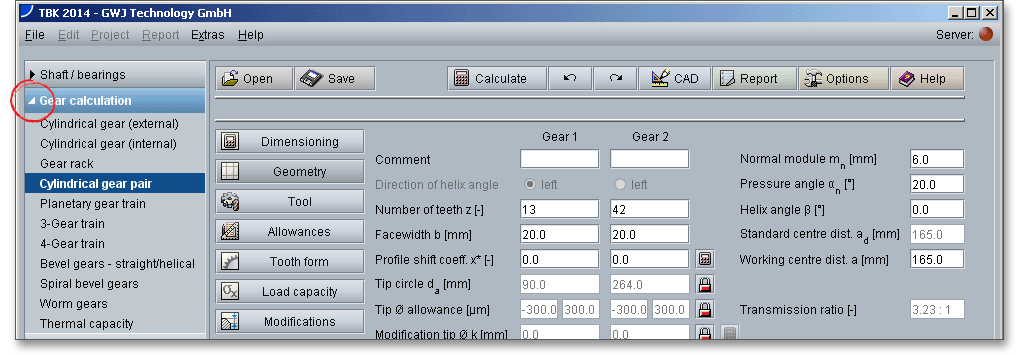
The module tree on the left side shows all calculation modules. Click the arrow to the left to display the individual modules. One click starts the module. The TBK framework provides the flexibility to easily change between the modules. A previously opened module does not need to be reloaded again and is immediately available without waiting. The last calculation will be loaded automatically.
The menu item ‘Quit the Calculation module’ just closes the current calculation module and not the whole program.

Click the ‘Exit’ button to close the application.

It is easy to switch from one language to another. Click the menu item ‘Language’ and select the required language. The software is available in English and German.
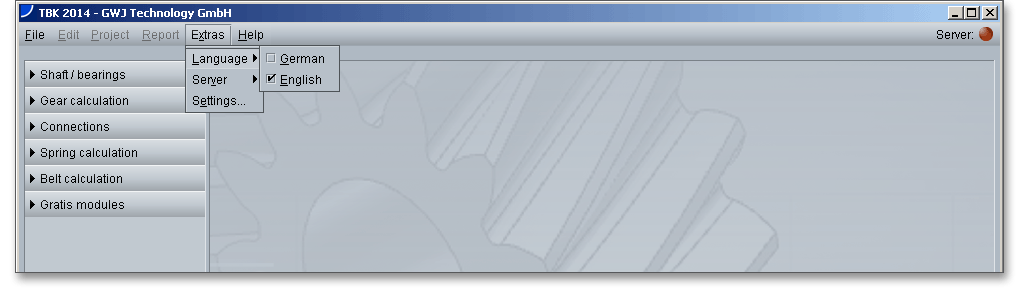
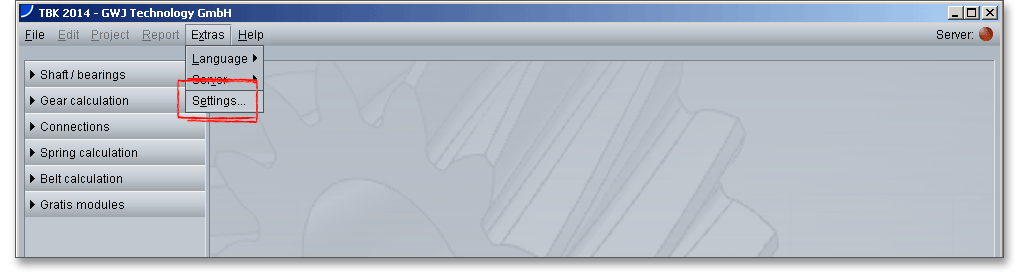
The menu item ‘Settings’ controls the properties of the software as a whole, while the menu item ‘Options’ controls the properties of the individual calculation module. This is where you configure settings like adding a project info, enabling/disabling job data or selecting a short calculation report.
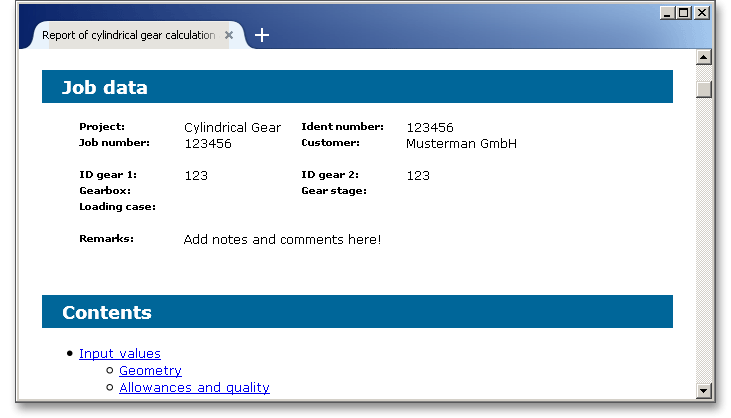
Entering the job data allows to specify an order. In this way you can describe each job in detail and properly document it. In the tree structure on the left side, click ‘General’ and set the checkmark ‘Show a dialog to edit the job data before generating the report’. If you enable this option, the job data is displayed on the screen before the calculation report is opened. That also means that a window is displayed in which you can enter the job data every time a calculation report is generated.
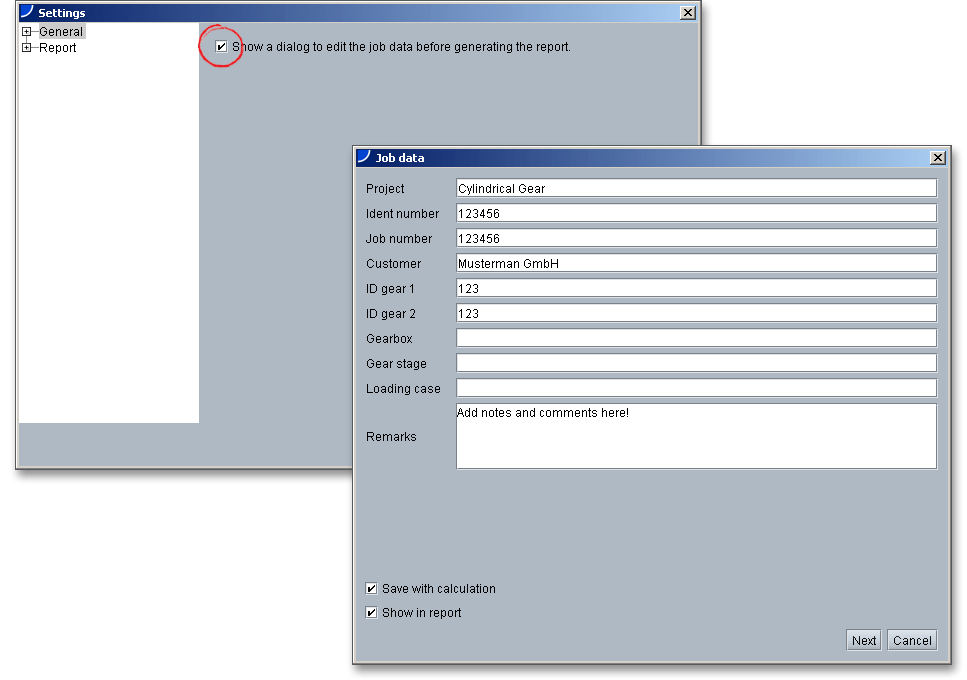
The job data can be saved to the calculation, meaning that you do not have to enter the job data again every time. To do so, please enable the checkbox ‘Save with calculation’. If you save the calculation, the job data is also saved. If you disable the function ‘Show in report’, the job data is not displayed in the calculation report.
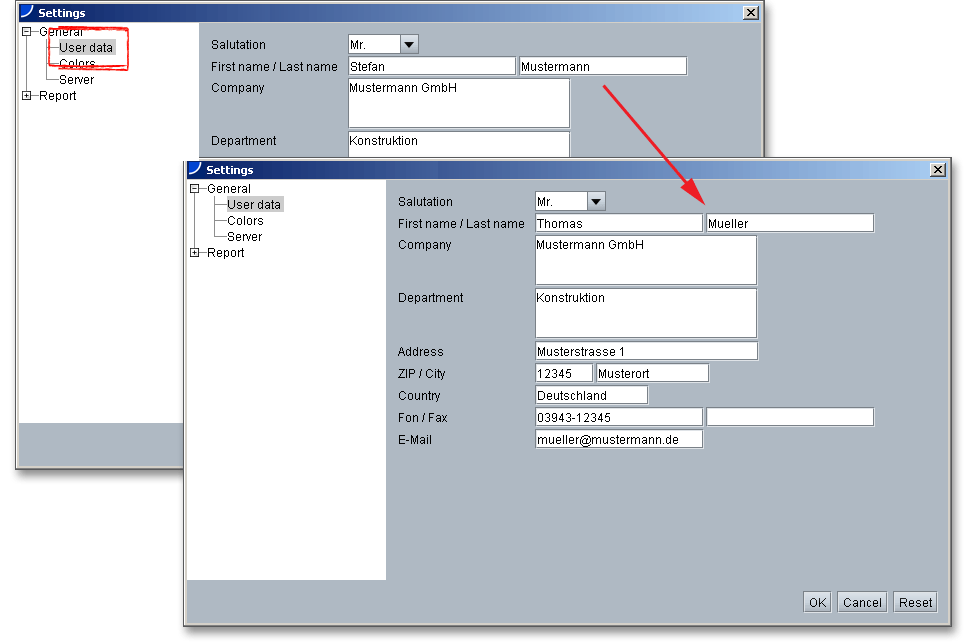
In case several users share the same password and user name, a single user can configurate own user data on the workstation. Later, the data will appear at the top of the generated calculation report and you will be able to see who has created the calculation. The configuration manager is particularly helpful for companies who have multiple parallel accounts. When you start the program, the module first shows the user data that is saved in the TBK ‘User data’. You can customize the user data. Click the button ‘OK‘ to save the modifications.
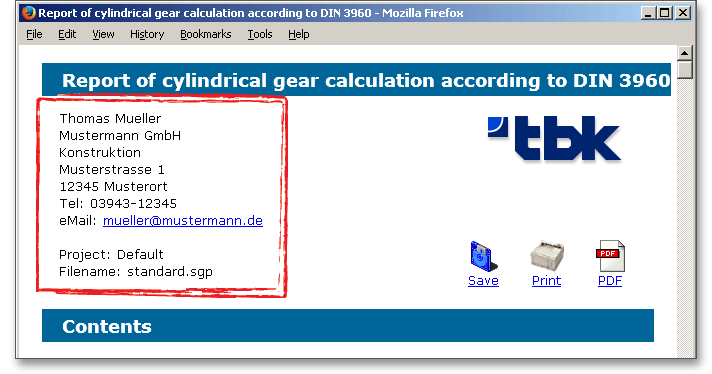
Open a calculation module, for example cylindrical gears. You can leave the configuration manager open. Click the button ‘Report’ to generate the calculation report. The modified user data appear in the header section of the calculation report. The general user data will remain in place.
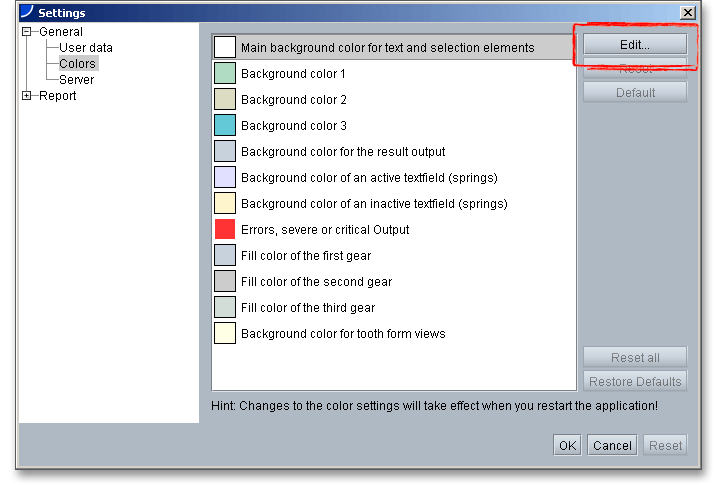
You can change the background color or the color of the gears as you like. Click on the menu item ‘Color’ and select the area you want to modify. Click the button ‘Edit’.
Select a color in the swatches panel or choose a color using the color picker. To choose a color, click a color in the swatches panel. The color is immediately visible in the bottom section. Select ‘OK’ to confirm the color.
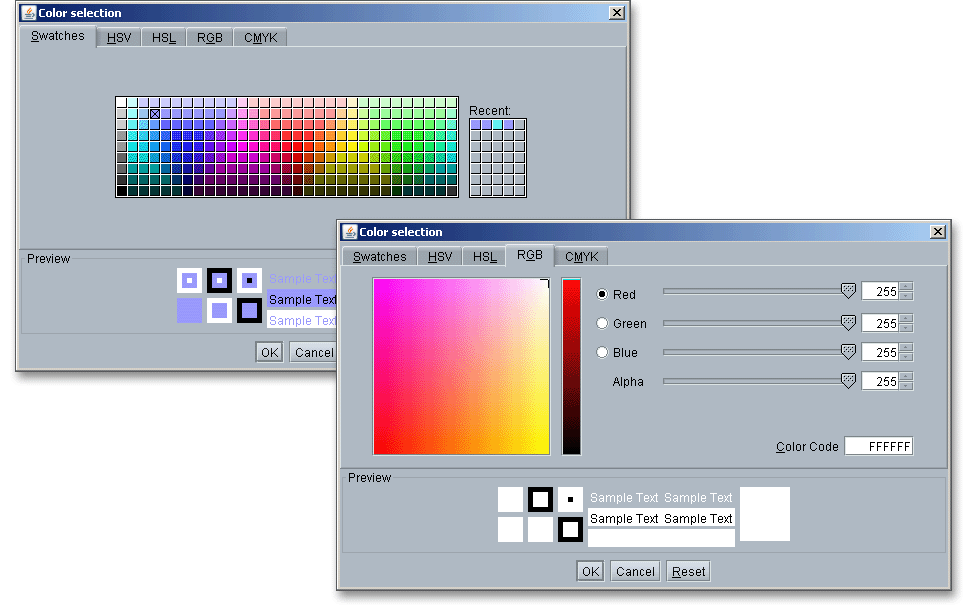
The color field in the color picker displays color components in HSV color mode, HSL color mode, RGB color
mode and CMYK color mode. If you know the numeric value of the color you want, you can enter it into the text
fields. You can also use the color slider and the color field to preview a color to choose. As you adjust the color
using the color field and color slider, the numeric values are adjusted accordingly. The small marker
displays the indicates the color’s position in the color field. Click ‘Reset’ to to reset all color data to
default.
Please note: You must restart the program for the changes to take effect.
The configuration manger provides report templates for each calculation module. Individual reports can be also integrated. If you have any questions or if you need further information, please feel free to contact us.
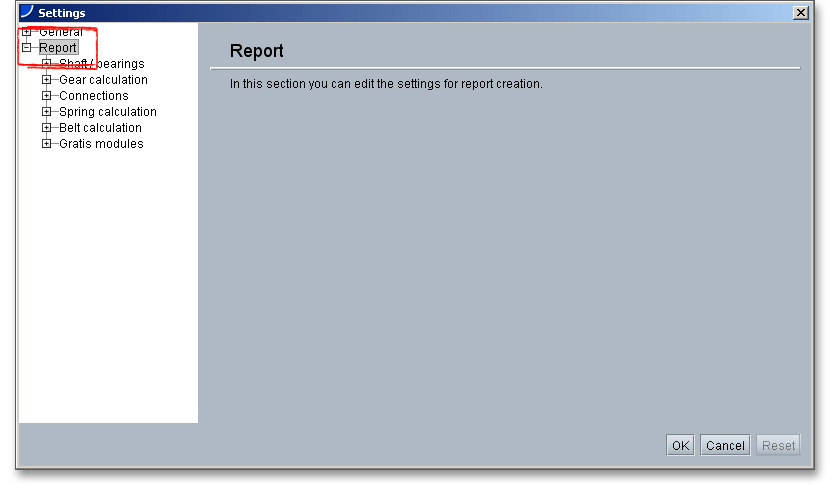
Click the tree view on the left-hand side to select a calculation module, for example shaft calculation. Click the listbox ‘Standard report template’ and choose either ‘Standard’ or ‘Short report’. Click on the button ‘Save settings’. If you select ‘Short report’, then a short report is generated for all calculation files that belong to the shaft module. A short report is not available for all calculation modules.
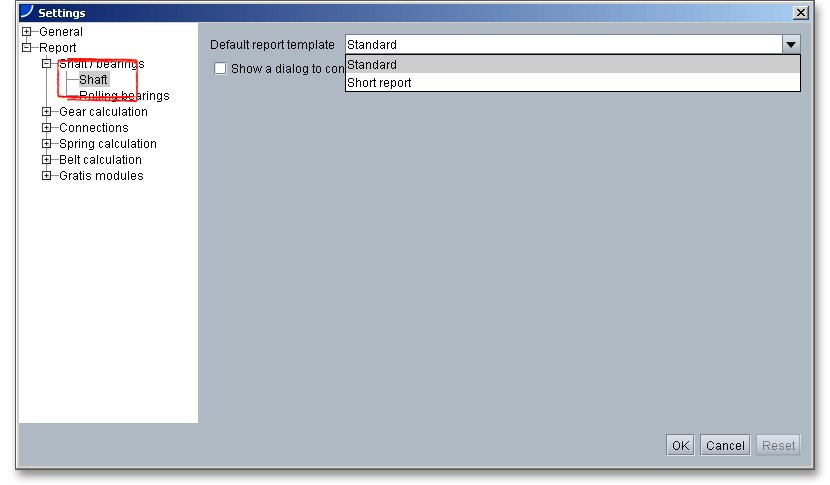
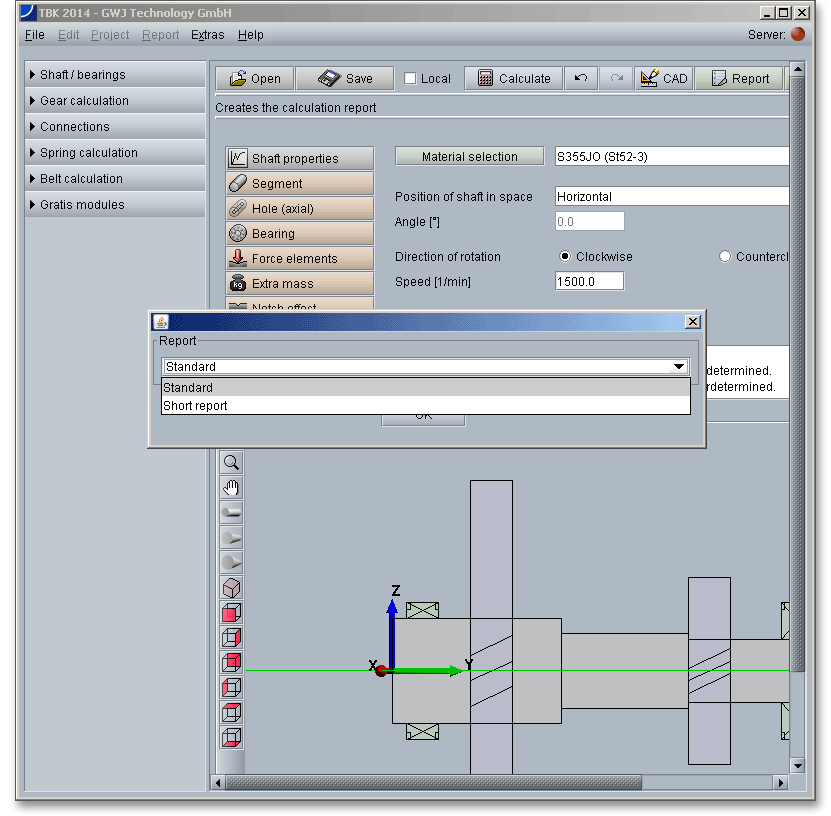
If you check the checkbox ‘Show a dialog to confirm...’, you receive a selection list each time before the generation of the calculation report starts. This list will help you decide which report template should be used for the report generation. If this checkbox is clear, the calculation report is automatically generated and no prompt is displayed.
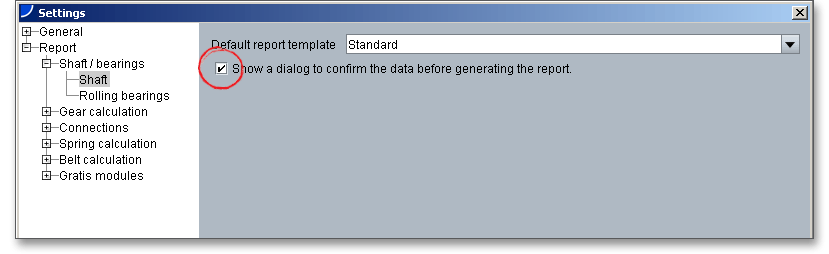
If you choose to place a check mark in the checkbox, a message window will be opened each time before the generation of the calculation report begins. In this window you can decide whether to create a standard calculation report or a short report. Confirm with the button ‘OK’ and the desired calculation report is generated.
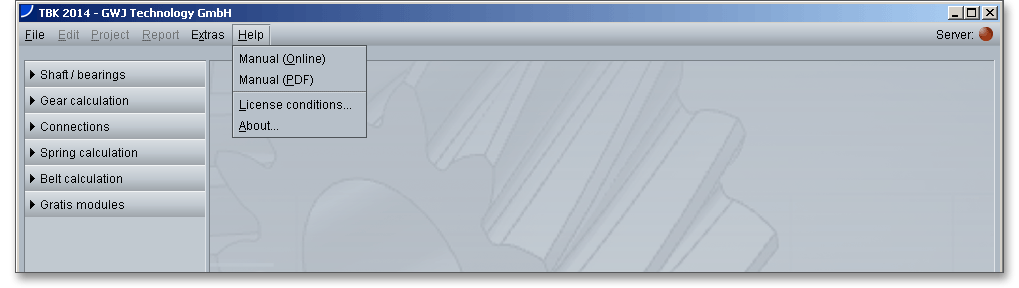
Click the button ‘Help’ to open the user manual in HTML and PDF format. It also contains the TBK License Conditions.
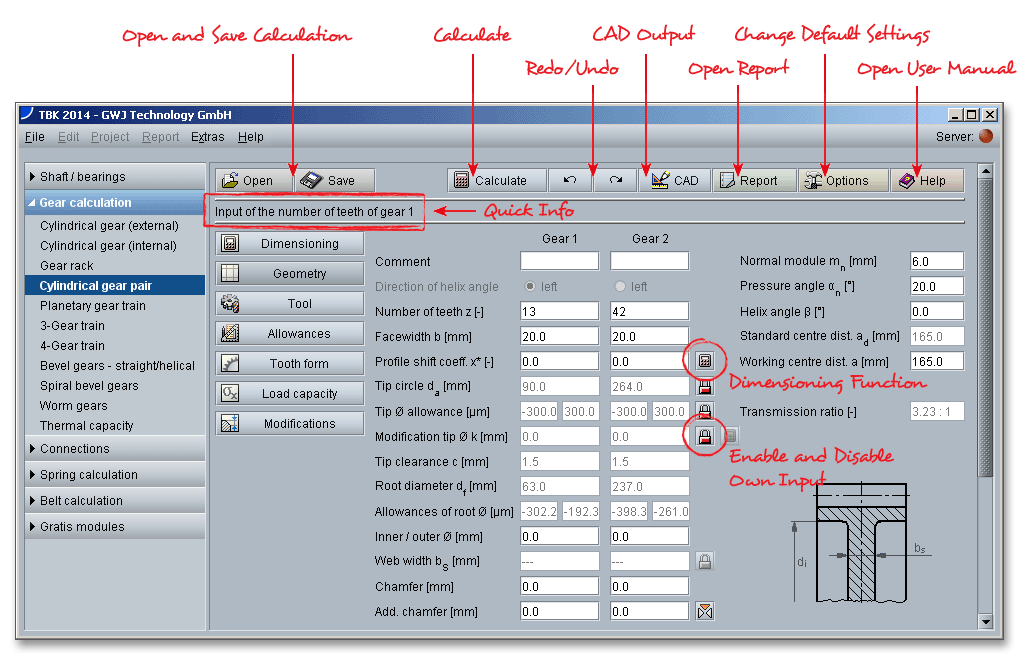
The top menu bar includes all general functions that are identical in every calculation module. Some calculation modules provide (e.g., shaft and cylindrical gear pair) the button ‘CAD’. Based on your calculation, parts can be generated automatically as a feature-based 3D part in a 3D system. Find more information in the calculation modules as well as in the section 2.8 ‘The Button CAD’.
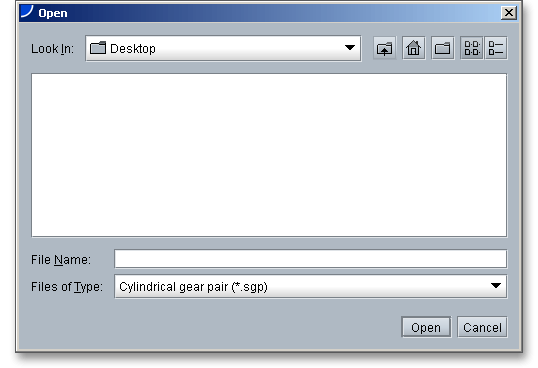
Click the ‘Open’ button in the top menu bar and choose the file that you want to open. Click the button ‘Open’.
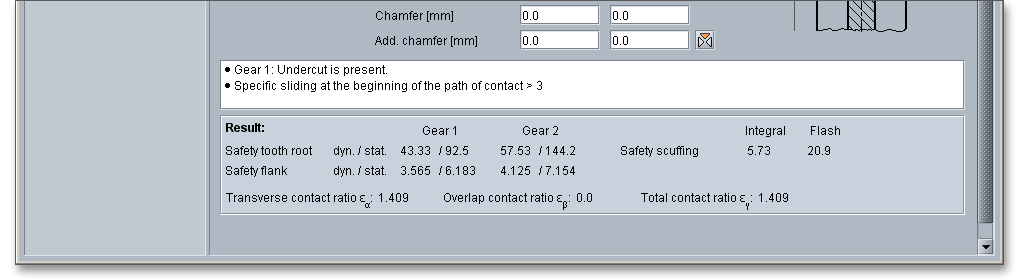
All results will be calculated during every input and will be displayed in the result panel. A recalculation occurs after every data input. Any changes that are made to the user interface take effect immediately. In case a minimum safety is not fulfilled, the result will be marked red. Press the Enter key or move to the next input field to complete the input. Alternatively, use the Tab key to jump from field to field or click the ‘Calculate’ button after every input. Your entries will be also confirmed and the calculation results will displayed automatically.

The button ‘Undo’ allows you to reset your inputs to an older state. The button ‘Redo’ reserves the undo.

The top menu bar of some calculation modules provides the button ‘CAD’. The CAD plugins for various CAD systems (e.g., SOLIDWORKS, Solid Edge, Autodesk Inventor, NX and Creo Parametric) offer a great way to connect calculation and design. Based on the TBK calculation, you can create shafts, cylindrical gears, bevel gears, involute splines, splined shaft or serrated shaft connections as a 3D part within seconds. The individual features of the CAD plugin depend on the CAD system. TBK also supports the output format DXF.

Before you can start using the CAD plugin, you need to download and install the plugin from our web site www.tbksoft.com.
Click on the button ‘CAD’, then click on the menu item ‘DXF-Output’. An accurate tooth form for any involute gears in DXF format can be generated.
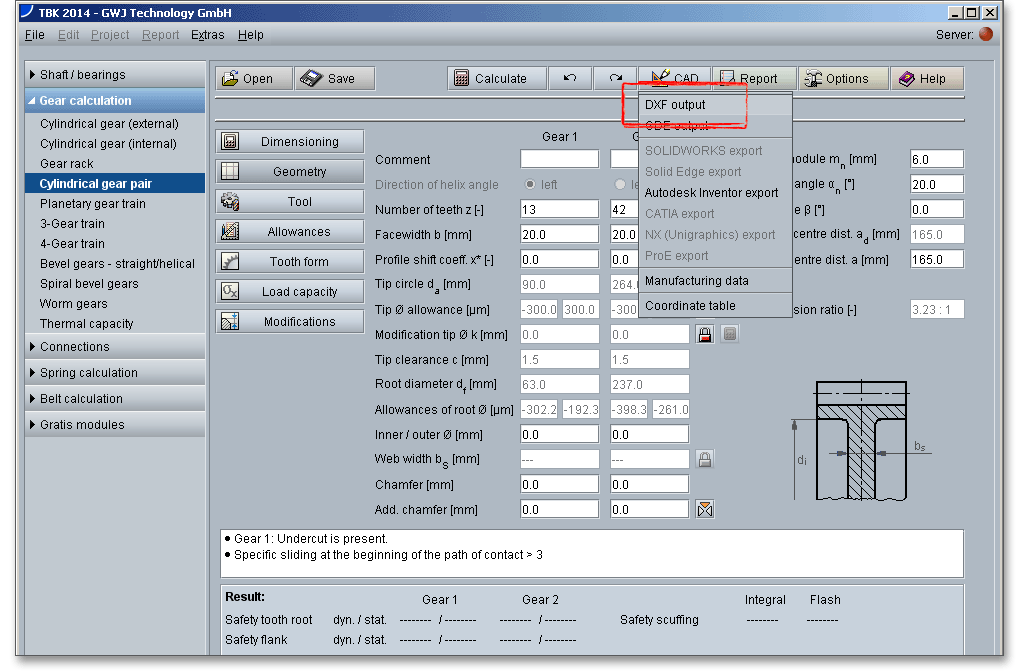
For the DXF output the following settings are possible:
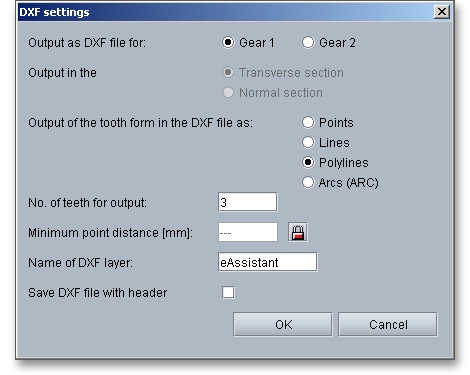
If you have changed your settings, then click on the button ‘OK’. A standard Windows dialog for saving the data file will appear.
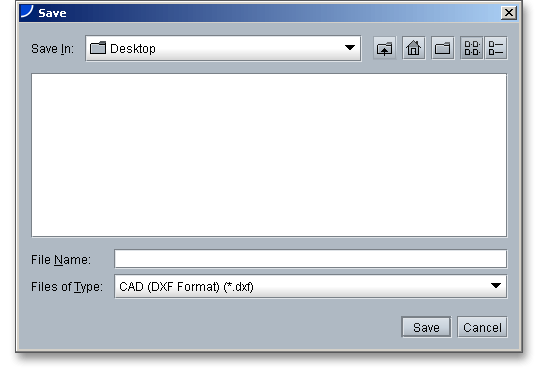
Now you can save the DXF file to your computer. Enter a name and click on the button ‘Save’. It is not
necessary to specify the file extension ‘dxf’, because the extension will be attached automatically to the file
name.
The CAD plugins for various CAD systems offer a great way to connect calculation and design. Together with the software, the CAD plugins allow to dimension, calculate and optimize various machine elements directly in the CAD system (SOLIDWORKS, Solid Edge, Autodesk Inventor, NX or Creo). The plugins enables the user to open all TBK calculation modules directly through the CAD menu. At the push of a button, the part can be created as a 3D part on the basis of the previously calculated data. First, you have to download and install the CAD plugin. You can find the plugin on our web site www.tbksoft.com. After installation, an integrated button called ‘TBK’ appears in the CAD system.
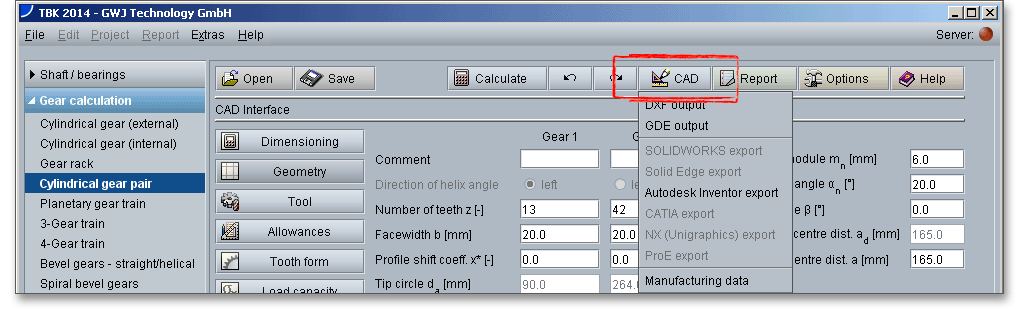
Run the calculation using the TBK and click on the button ‘CAD’. Please select the appropriate CAD system from the list. The values are transferred to the CAD system where you can generate the 3D models through the TBK menu. By taking a step-by-step process defining the gears or pinions geometry, tolerances and tooth profile, you can create gears automatically as a 3D part. Based on the calculation, shafts with an unlimited number of cylindrical and conical segments can be created as a 3D part. The attractiveness of the CAD plugin is additionally enhanced by the bidirectional connection between TBK and the CAD system. As changes are made to a calculation, the 3D model can be updated. With just one click, the design table with all manufacturing details can be placed on the manufacturing drawing. The calculation information is saved in the 3D model and can be opened at any time throughout the entire design phase. Please visit www.gwj.de to get further information.
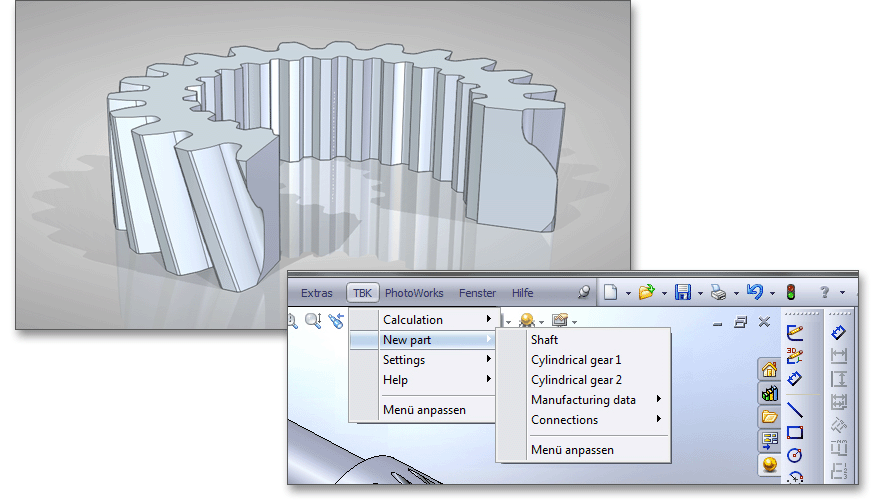
Please Note: Before you click the CAD button for involute gears, please click the button „Tooth form“. Select „Detail view“ and set the desired allowance (min./middle/max).
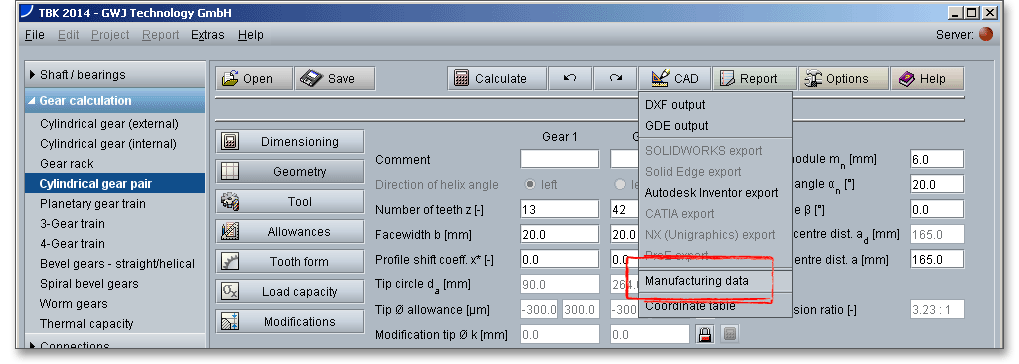
The button ‘CAD \(\Rightarrow \) Manufacturing data’ allows to save the manufacturing data to a text file.
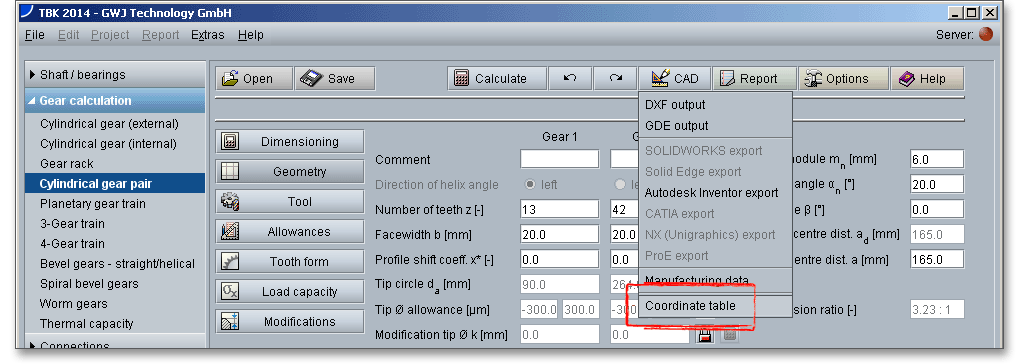
The gear tooth form geometry of a tooth space can be exported as a coordinate text file in transverse section as well as in normal section.
After the completion of your calculation, you can create a calculation report. Click on the ‘Report’ button.

You can navigate through the report via the table of contents that provides links to the input values, results and figures. This calculation report contains all input data, the calculation method as well as all detailed results. The report is available in HTML and PDF format. The calculation report saved in HTML format can be opened in a web browser or in Word for Windows. The reports are structured differently in the various calculation modules.
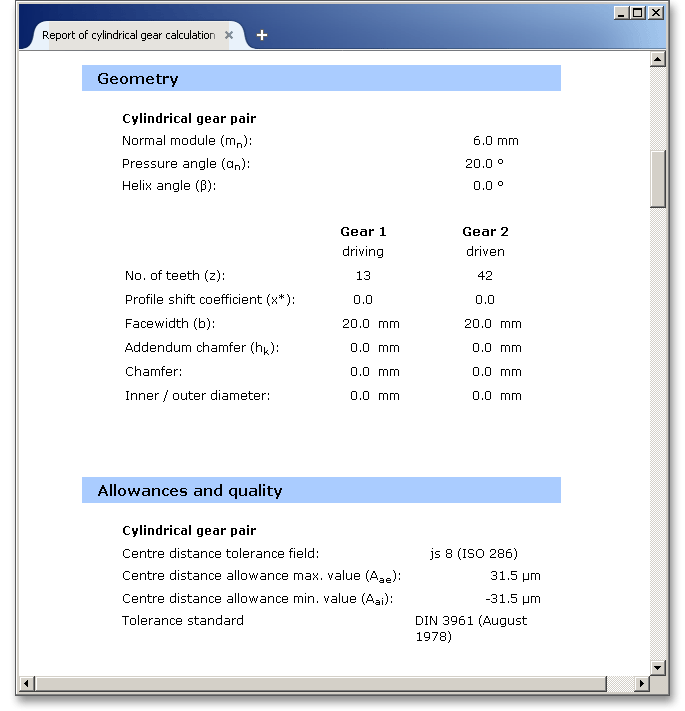
The calculation module includes:
Print, PDF or Save: Here you have the possibility to save and print the report or to generate a PDF document.
Some settings of the calculation modules have default values and by clicking the button ‘Options’ you can change these settings. For example, you can change the minimum safeties for cylindrical gears, the operating temperature for springs or set the number of decimal places for the calculation report.

Click the button ‘Help’ to open the user manual. This takes you directly to the user manual of the respective module.

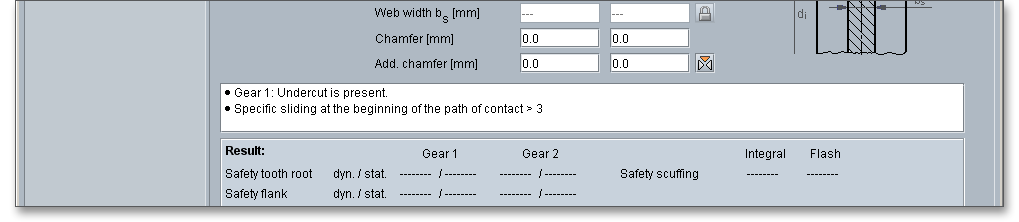
Every calculation module contains a message window. This message window displays detailed information, helpful hints or warnings about problems. One of the main benefits of the program is that the software provides suggestions for correcting errors during the data input. If you check the message window carefully for any errors or warnings and follow the hints, you are able to find a solution to quickly resolve calculation problems.
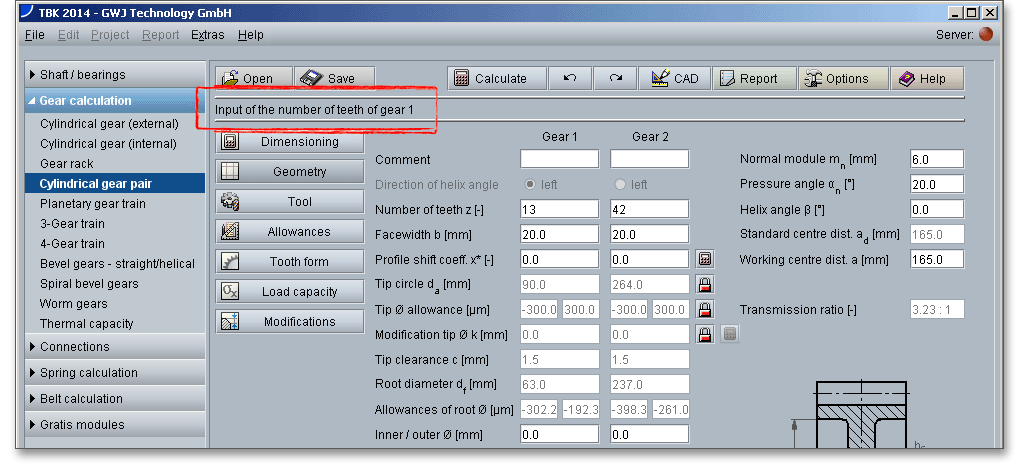
he quick info feature gives you additional information about all input fields and buttons. Move the mouse pointer to an input field or a button, then you will get some additional information. This information will be displayed in the quick info line.
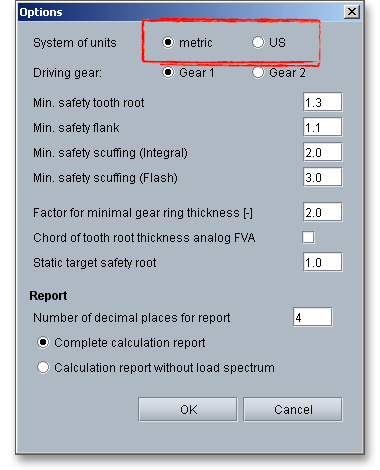
TBK provides two unit systems: the metric system and the U.S. customary unit system. You can quickly switch between the units. To select the unit system, click the button ‘Options’ and decide for a unit.
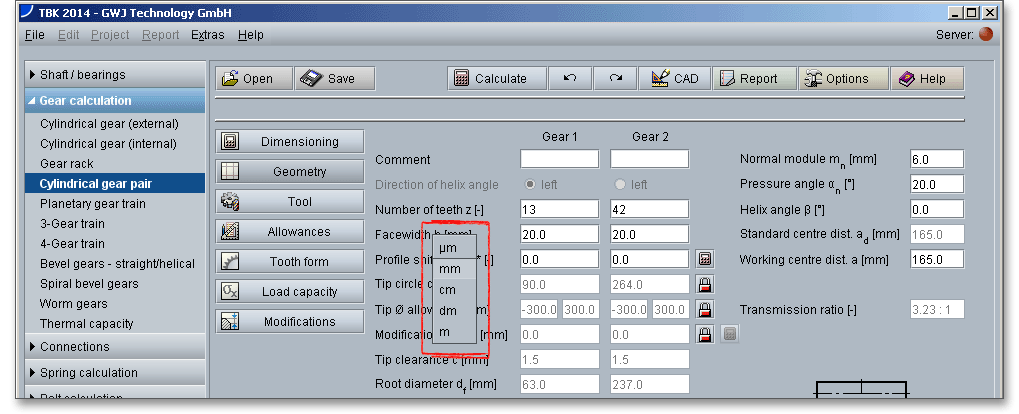
It is also possible to change the unit by clicking the label field. When you click the label field, a context menu will open providing all available units within the unit system. The change should take effect immediately. All settings will be saved to the calculation file. As soon as you select a unit, the current field value will be converted automatically into the chosen unit.
The button for the dimensioning functions is marked by a calculator symbol. Via the ‘Calculator’ button next to the input fields, you can have the program suggest appropriate values for you. In some modules, the maximum possible values are calculated by using the respective minimum safety.
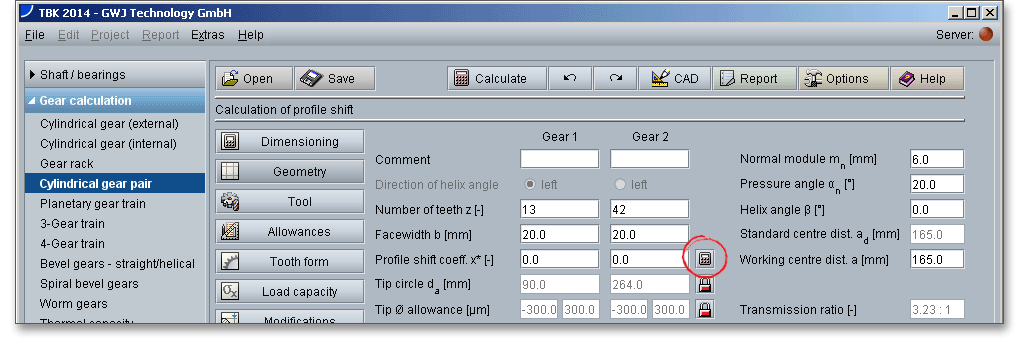
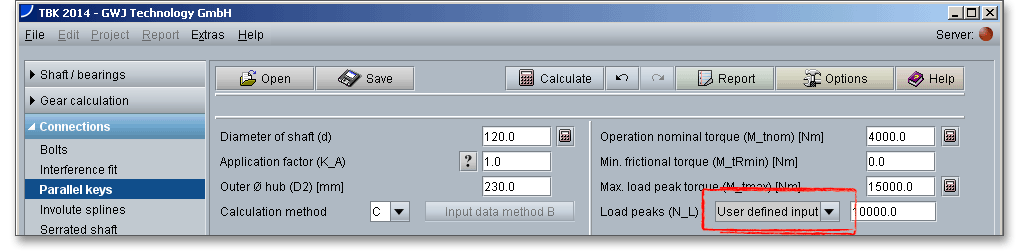
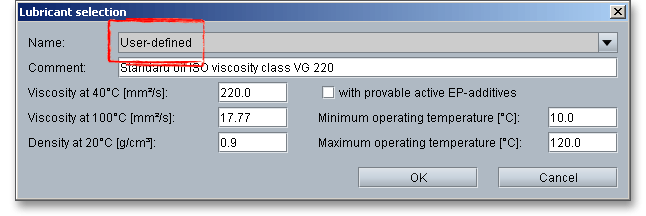
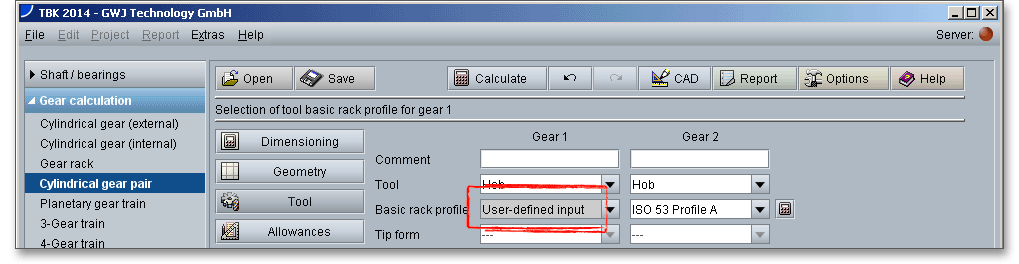
TBK enables you to specify your user-defined inputs. There you get the possibility to calculate non-standard parallel keys or to calculate involute splines which differ from the standard. In case you cannot find the material you are looking for in our extensive material database, you can define your individual material. You will find the entry ‘User-defined’ or the entry ‘User defined input’ in the listboxes. If you select one of these already mentioned options, the according input fields will be enabled, so that you can specify your own input values. Examples for the user-defined input:
Interference fit: Surface quality

Parallel key: Own input of load peaks
Roller bearings: Lubricant selection
Cylindrical gear pair: Selection of basic rack tooth profile
In some calculation modules (e.g., spur gear pair or parallel key module) you will find question mark buttons. If you click on these buttons, you will get additional information, for example figures or tables.
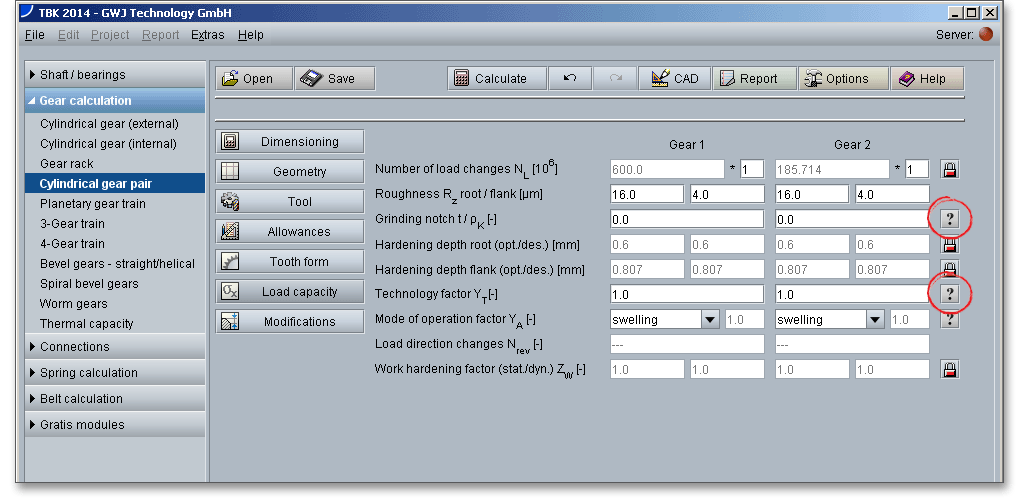
All results will be calculated during every input and will be displayed in the result panel. A recalculation occurs after every data input. Any changes that are made to the user interface take effect immediately. In case a minimum safety is not fulfilled, the result will be marked red. Press the Enter key or move to the next input field to complete the input. Alternatively, use the Tab key to jump from field to field or click the ‘Calculate’ button after every input. Your entries will be also confirmed and the calculation results will displayed automatically.
If you have to enter the same data very often, we recommend you to define a template file. That saves both time
and work. All you have to do is to define a template. Enter your input data once into the calculation module.
When you are ready to save the file, please name it ‘standard’. If you now open the calculation module, the
module starts with your individual values. The template file is saved to your local drive. It is possible to define a
template file for each calculation module.
Start the calculation module ‘Parallel key’. Change and define your input data. Click on the button ‘Save’. Now enter the file name ‘standard’ into the input field.
The template file must be saved to the folder ‘template’ in the installation directory (e.g. C:\Programms\TBK2014 \modules\AppletParallelKeys\template).
Close the calculation module ‘Parallel key’. The template file will be used when you open the calculation module again.
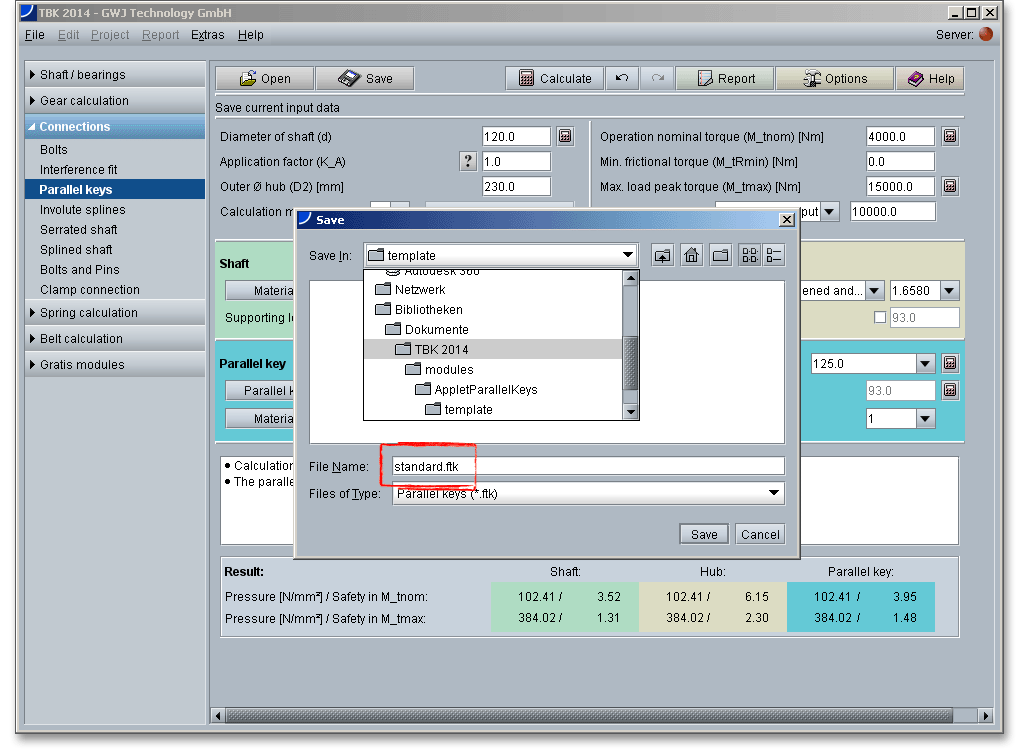
It is not necessary to specify the file extension. TBK identifies the calculation module automatically. Please also pay attention to the lower case of ‘standard’.